





Is Calculator Allowed in CAT 2026? Everything You Need to Know About the On-Screen Calculator
Yes — CAT 2026 provides an on-screen calculator. But it’s not a scientific calculator, it can’t be replaced by your phone, and most students are using it wrong. Here’s exactly what it can do, what it can’t, and how to actually make it work for you on exam day.
- Is a Calculator Allowed in CAT 2026?
- What the CAT On-Screen Calculator Actually Looks Like
- What the CAT Calculator Can Do
- What the CAT Calculator Cannot Do
- 5 Myths About the CAT Calculator — Busted
- Why CAT Rarely Needs the Calculator Anyway
- The Most Underrated Feature — Memory Keys Explained
- When to Use the Calculator (and When Not To)
- How to Practice With the CAT Calculator
- The Real Takeaway — What Exam Day Demands
1. Is a Calculator Allowed in CAT 2026?
Yes — a calculator is provided to every CAT 2026 candidate. But the answer comes with three things that most students don’t know upfront.
- It’s on-screen only. The calculator is built directly into the CAT exam interface. You cannot bring a physical calculator, your phone, or any external device to the exam centre.
- It’s available across all sections. The on-screen calculator is accessible during VARC, DILR, and QA — though for VARC it’s functionally irrelevant. In practice, it matters for QA and DI sets.
- Mouse-driven, no keyboard. Every digit and operation is entered by clicking on-screen buttons with the mouse. Keyboard input is disabled for the calculator — and for TITA answers too. This is a deliberate exam-wide design choice, not a bug.
⚠ No External Calculator of Any Kind Is Permitted
Physical calculators, phones, smartwatches, and any other electronic device are prohibited at the exam centre. The only calculator you will have access to in CAT 2026 is the one built into the exam interface. Attempting to bring an external device constitutes malpractice.
2. What the CAT On-Screen Calculator Actually Looks Like
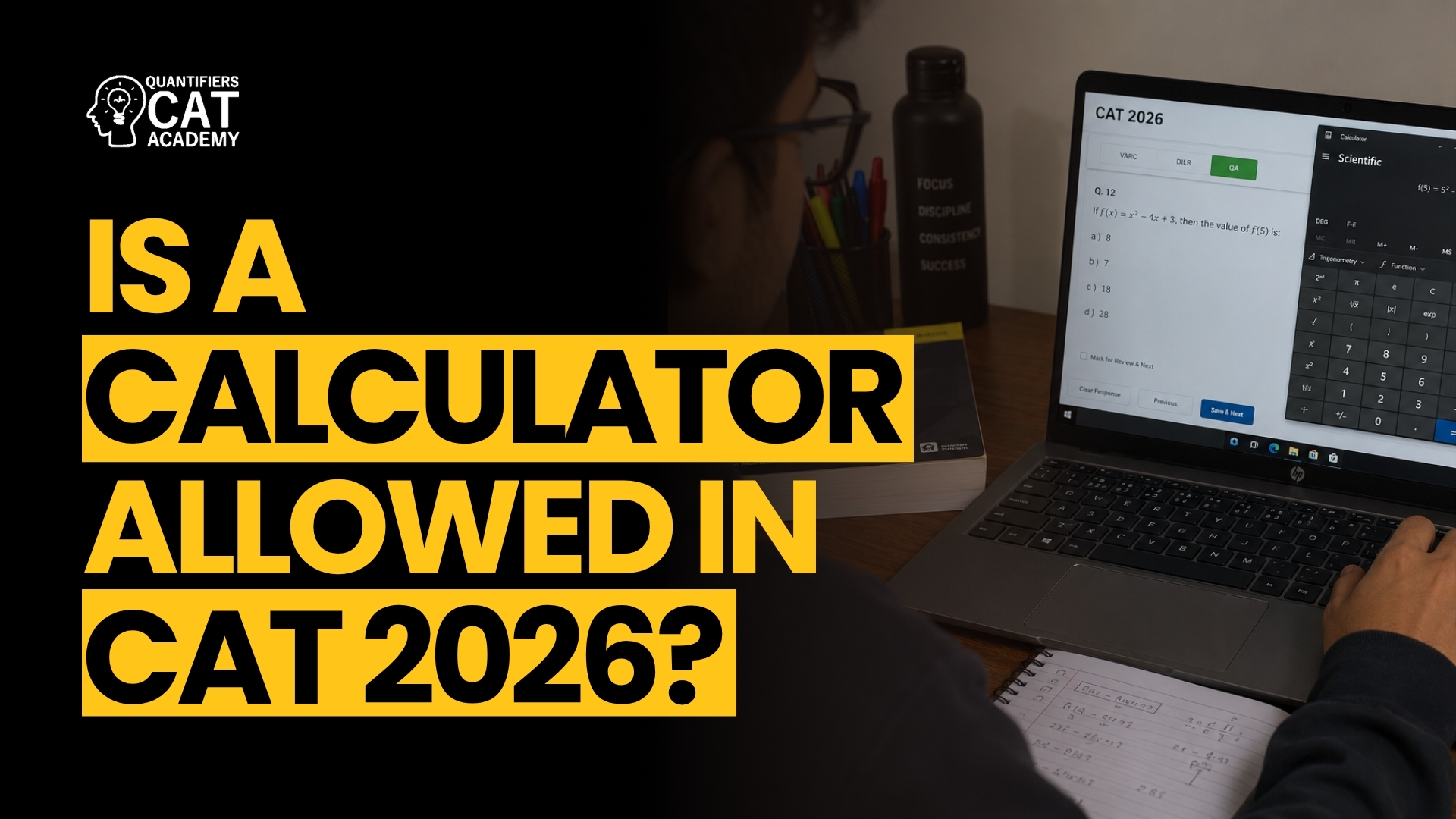
The CAT on-screen calculator has looked and behaved almost identically across every exam slot since its introduction — modelled closely on the Windows Standard Calculator. Not a scientific calculator. Not a graphing calculator. A basic, four-function tool with a handful of extras.
It sits as a floating widget within the exam window that you can move around the screen. It opens on demand and doesn’t interfere with the question you’re reading. The layout is fixed — same arrangement for every candidate, every slot, every year.
Table 1 — The CAT On-Screen Calculator: Key Facts
| Feature | Detail |
|---|---|
| Type | Basic four-function calculator (modelled on Windows Standard Calculator) |
| Input method | Mouse clicks only — keyboard input disabled |
| Availability | Built into the exam interface — not downloadable or external |
| Sections accessible | All three sections (VARC, DILR, QA) |
| Display | Single-line numeric display |
| Memory keys | MS, MR, M+, M−, MC |
| Scientific functions | None |
| Keyboard shortcuts | Not available |
3. What the CAT Calculator Can Do
Every essential arithmetic operation that CAT actually requires you to compute is available on the on-screen calculator:
✓ What It CAN Do
- Addition (+)
- Subtraction (−)
- Multiplication (×)
- Division (÷)
- Square root (√x)
- Reciprocal (1/x) — e.g. press 5, then 1/x to get 0.2
- Percentage (%) — for quick ratio and proportion calculations
- Positive/negative toggle (±)
- Decimal point (.)
- Memory Save (MS), Memory Recall (MR), Memory Add (M+), Memory Subtract (M−), Memory Clear (MC)
✗ What It CANNOT Do
- Powers and exponents (3³, 7⁴)
- Higher roots (cube root, 5th root)
- Logarithms (log, ln)
- Trigonometry (sin, cos, tan)
- Equation solving
- Graphing
- Factorials (5! must be calculated by hand)
- Keyboard input
- Parentheses / expression parsing
💡 The Can-Do List Covers Everything CAT Actually Asks For
The Cannot-Do list looks long — but look at the kinds of questions CAT actually asks. Powers of 2 or 3 are expected to be memorised. Logarithm questions in CAT almost always have clean, integer answers solvable without a calculator. Trig doesn’t appear in CAT QA. Factorials come up in P&C questions where the numbers are small enough to compute mentally. The calculator’s limits match exactly the functions CAT doesn’t test directly — that’s not a coincidence.
4. What the CAT Calculator Cannot Do
Understanding the limits matters as much as understanding the features — because the most common calculator-related error in CAT isn’t a wrong answer from the software. It’s a candidate trying to feed a full expression into a single-step tool.
The CAT calculator expects step-by-step input, not full expressions. If you type 3 + 4 × 2 and hit equals, it will compute left to right (giving 14, not 11) — it doesn’t apply BODMAS automatically. You have to handle operator priority yourself by breaking the calculation into correct sequences.
⚠ The Calculator Does Not Apply BODMAS Automatically
Multiplication and division share equal priority (computed left to right), as do addition and subtraction. The calculator processes operations in the order you enter them — it will not reorder a mixed expression to respect standard mathematical priority. Always simplify expressions on paper first and feed the calculator one step at a time. Entering a full expression as-is will give a wrong answer.
5. Five Myths About the CAT Calculator — Busted
Five complaints appear in almost every prep group and post-exam thread about the CAT calculator. Here’s what’s actually behind each one:
Table 2 — CAT Calculator Myths vs. Reality
| The Complaint | What’s Actually Happening |
|---|---|
| “It’s too slow” | The calculator computes instantly. The delay is the time spent clicking digits you haven’t practiced entering on a mouse-driven interface. Speed comes from practice, not from the software. |
| “Mouse-only is frustrating — no keyboard” | This is a deliberate exam-wide rule. TITA answers also use the mouse, not the keyboard. It applies equally to every candidate. Practicing on a mouse-driven interface beforehand eliminates the frustration entirely. |
| “It gives wrong answers” | Basic arithmetic software doesn’t miscalculate. Wrong outputs come from wrong inputs — misclicking a digit, entering the wrong sequence, or not accounting for BODMAS manually. The calculator is always right; the entry was wrong. |
| “It’s not smart enough” | It’s a calculator, not a CAS. It expects simplified, step-by-step input — not a full expression. Feed it one operation at a time and it works exactly as expected. |
| “It’s not worth opening” | This is only true for calculations you can do faster mentally. For multi-step DI calculations, long decimals, weighted averages, and surd comparisons, opening the calculator consistently saves more time than it costs. |
6. Why CAT Rarely Needs the Calculator Anyway
Here’s the thing most students miss about the CAT calculator debate: the exam is designed around concepts and reasoning, not arithmetic computation. The questions that seem to need a calculator usually have clean answers by design — and the questions with messy arithmetic are usually traps testing whether you pick the efficient approach or the brute-force one.
Consider the difference between these two question types:
Table 3 — CAT’s Question Design Philosophy
| Type | Example | What It Tests |
|---|---|---|
| Rarely asked in CAT | log₂ 15 | An irrational, calculator-dependent value — not CAT’s style |
| Actually asked in CAT | log₂ 16 | A clean conceptual answer (= 4) solvable instantly in your head |
| Rarely asked | √203 | Requires the calculator — messy decimal, no pattern |
| Actually asked | √196 | 14 — a memorised perfect square, zero computation needed |
| Where calc genuinely helps | Multi-step DI: 3 ratios × 4 years of data | Real arithmetic burden — calculator saves meaningful time here |
If you find yourself needing the calculator for a QA question every few minutes, the issue isn’t tool access — it’s that the foundational arithmetic (squares, cubes, fractions, percentages) isn’t fast enough yet. The calculator is a backup for genuine computation load, not a crutch for weak mental math.
💡 If You Need a Calculator for log₂ 16, the Gap Is in Fundamentals — Not the Tool
CAT hands you a calculator so you can spend your cognitive energy on logic and reasoning — not so you can skip building number sense. Students who rely on the calculator for questions that should be solved mentally end up slower, not faster, because every calculation requires clicking 6–8 times through the mouse interface. The calculator is most valuable when you’ve already decided what to calculate — not when you’re using it to figure out what the question is asking.
7. The Most Underrated Feature — Memory Keys Explained
Most CAT students never use the memory keys. That’s a missed opportunity — they’re the closest thing to a scratchpad that the calculator offers, letting you hold intermediate values without writing anything down or switching windows.
Table 4 — Memory Keys and What Each Does
| Key | Function | When to Use It |
|---|---|---|
| MS | Memory Save — stores the number currently on screen | After computing an intermediate result you’ll need again |
| MR | Memory Recall — brings the stored value back to the display | When you need to reuse a previously stored number |
| M+ | Adds the current display value to the memory | Building a running total across multiple calculations |
| M− | Subtracts the current display value from the memory | Running subtraction across multiple steps |
| MC | Memory Clear — resets the stored value to zero | Before starting a new question — always do this |
Memory Keys in Action — A Worked Example
Suppose a DI question asks you to combine 7√2 and 5√3 and compare their sum to a given value. Here’s how the memory keys eliminate the need to write anything down:
- Click 7, then ×, then √, then 2 → display shows 7√2 ≈ 9.899
- Press MS — that value is now stored in memory
- Click 5, then ×, then √, then 3 → display shows 5√3 ≈ 8.660
- Press M+ — adds 8.660 to the stored 9.899
- Press MR — display shows the combined total ≈ 18.559
- Press MC before your next question — never carry over a stored value
⚠ Always Press MC Before Starting a New Question
This is the single most common memory-key error: a value stored from a previous question leaks into the next one via M+ or MR. Make pressing MC the first thing you do every time you open the calculator for a new question — before you enter a single digit. Build this as a reflex, not an afterthought.
8. When to Use the Calculator (and When Not To)
The most effective approach is knowing — before you start a calculation — whether the calculator will be faster or slower than mental math for that specific operation.
Table 5 — Calculator Decision Framework for CAT
| Situation | Use Calculator? | Why |
|---|---|---|
| Simple division (e.g. 812 ÷ 4) | No | Halve twice mentally: 406 → 203. Faster than 6 clicks. |
| Familiar squares and cubes (1–30 range) | No | These should be memorised — recall is instant. |
| log₂ 16, log₃ 27 type questions | No | CAT logs almost always have clean integer answers — conceptual solve. |
| Multi-year DI with 3–4 data points to cross-multiply | Yes | Genuine arithmetic load — calculator saves 30–60 seconds per set. |
| Long decimals and weighted averages | Yes | Risk of manual error is high; calculator handles it cleanly. |
| Surd comparisons (e.g. 7√2 vs 5√3) | Yes | Memory keys make chained surd calculations fast and error-free. |
| Percentage calculations with non-round numbers | Yes | The % key is faster than long division for non-obvious percentages. |
| Anything you can do faster in your head | No | Mouse-clicking 8 digits takes longer than a 2-second mental calculation. |
9. How to Practice With the CAT Calculator
The single most actionable piece of advice from every Quantifiers faculty member about the CAT calculator: practice on the Windows Standard Calculator from day one — not a scientific calculator, not your phone’s calculator, not a third-party app.
- Open Windows Standard Calculator (search “Calculator” on Windows, switch to Standard mode if it opens in Scientific). This is the closest freely available replica of the CAT interface.
- Mouse-only practice. Use your mouse — not your keyboard — for every calculation during practice sessions. The interface is unfamiliar until it isn’t, and exam day is the worst time to build that familiarity.
- Drill the memory keys. Practice the MS → compute → M+ → MR → MC sequence on actual DI sets. Build it into muscle memory, not a concept you recall under pressure.
- Simplify on paper first. For any multi-step calculation, write out what you need to compute — then enter it one step at a time. Never feed a full expression and expect correct BODMAS handling.
- Time yourself. The goal is making the calculator feel like zero cognitive overhead on exam day. If you’re still thinking about which button to press, the interface isn’t familiar enough yet.
- Use it only in the right places during mocks. Practice the decision too — not just the tool. Every time you open the calculator in a mock, consciously ask whether mental math would have been faster.
💡 Build Muscle Memory Now — Exam Day Is the Wrong Time to Learn the Interface
Students who encounter the CAT calculator for the first time in the actual exam spend 15–20 seconds per calculation on interface friction — figuring out button positions, accidentally hitting wrong keys, forgetting the memory sequence. That time compounds across an entire QA section. Students who’ve practiced on the Windows Standard Calculator for 3–4 weeks experience zero friction. The calculator is the same both times — the only difference is familiarity.
10. The Real Takeaway — What Exam Day Demands
The CAT on-screen calculator is a real tool with real limits. Used well, it saves time on the specific calculations where manual effort doesn’t make sense. Used badly, it creates more friction than it removes. The question isn’t whether to use it — it’s developing the judgment to know when.
- Practice on Windows Standard Calculator — not scientific, not phone app, not online calculator with keyboard support.
- Press MC before and after every use of the memory keys — stored values from previous questions are the most common source of “calculator errors” that aren’t the calculator’s fault.
- Simplify on paper first, then feed step by step — never enter a full expression and expect the calculator to handle BODMAS.
- Build mental math for the basics — squares 1–30, cubes 1–15, tables 1–20, common fraction-decimal-percentage conversions. The calculator is a backup, not a replacement.
- Use the decision framework — if mental math is faster, don’t open it. If the calculation has multiple steps and non-round numbers, open it without hesitation.
The students who use the CAT calculator most effectively are the same students who need it least — because they’ve built strong enough number sense to know exactly when it’s worth the clicks. Build the fundamentals, build the familiarity, and the calculator becomes one less thing to worry about on November 29.