



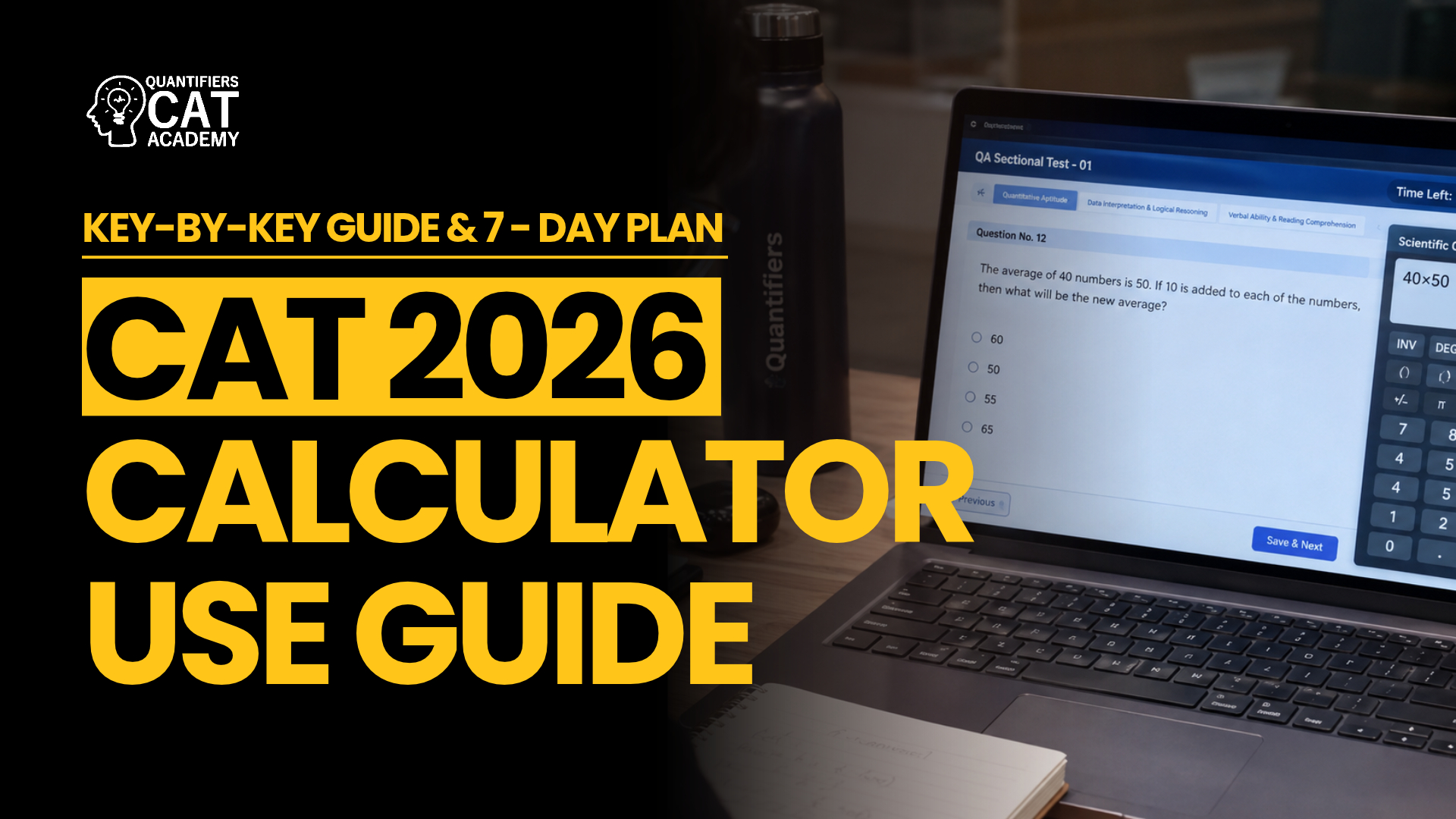

CAT 2026 Calculator Usage Guidelines: How to Use the On-Screen Calculator Key by Key
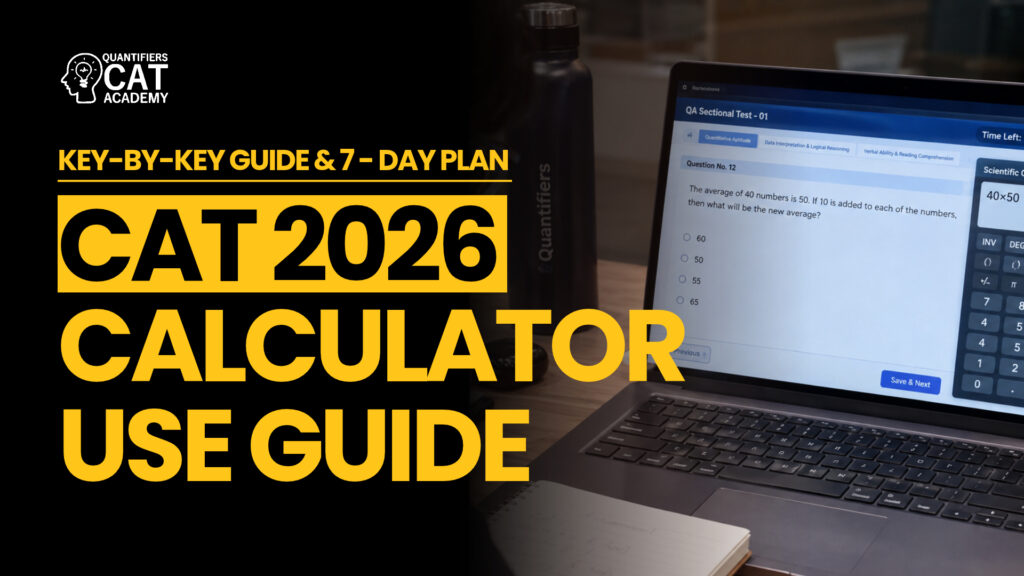
You cannot bring a calculator into CAT, but the test screen gives you a basic one. The CAT 2026 calculator usage guidelines boil down to a short list of keys, and most candidates never learn them properly until the last few days. With 12 days left before 29 November, this guide shows what each key does, how to use the memory keys, a safe way to do percentages, and a 7-day drill plan you can fit into your existing schedule.
- CAT 2026 Calculator Usage Guidelines at a Glance
- The Keys in the CAT 2026 Calculator Usage Guidelines
- Memory Keys: Your Hidden Scratchpad
- Percentages, Square Roots and Reciprocals
- When to Use the Calculator and When Not To
- A 7-Day Plan to Master the CAT 2026 Calculator Usage Guidelines
- Calculator Mistakes That Cost Marks
- Frequently Asked Questions
CAT 2026 Calculator Usage Guidelines at a Glance
The exam is on Sunday, 29 November 2026, as a computer-based test. The calculator is part of the exam screen, so there is nothing to install and nothing to carry. The table below separates what is widely reported from what you should check yourself. For the question of whether you may carry a calculator at all, see our explainer on what the exam permits.
| Question | What is reported | Status |
|---|---|---|
| Is there a calculator? | Yes, a basic on-screen calculator inside the test interface | Widely reported |
| Physical or scientific calculators? | Not allowed | Widely reported |
| Which keys? | +, −, ×, ÷, %, square root, reciprocal, sign change, C/CE, MS, MR, MC, M+, M− | Reported; confirm in the official mock |
| Which sections? | Reports differ; it is mostly useful in Quant and DILR | Unconfirmed |
| Where is the icon? | Reported near the upper-right of the screen | Unconfirmed |
| Does the % key behave as expected? | Reports advise testing it before relying on it | Test in the official mock |
The Keys in the CAT 2026 Calculator Usage Guidelines
Learn the keys as a group, not one at a time. Most of your time on the calculator will go to four of them: the four operations, the memory keys and the clear keys.
| Key | What it does | When it helps |
|---|---|---|
| + − × ÷ | Basic arithmetic | Multi-digit products and divisions in Data Interpretation |
| % | Percentage | Test its behaviour first; the safe method is below |
| √ | Square root | Perfect squares and roots inside longer calculations |
| 1/x | Reciprocal | Converting a fraction into a decimal quickly |
| +/− | Changes the sign | Entering negative values |
| C / CE | Clears everything or the last entry | Fixing a typing slip without starting over |
| MS | Stores the number on screen in memory | Holding a value you will need again |
| MR | Recalls the memory value | Bringing it back into a new calculation |
| M+ / M− | Adds to or subtracts from memory | Running totals across several products |
| MC | Clears memory | Press it before every new question |
Two habits will save you time straight away. First, plan to click the keys with the mouse and check in the official mock whether keyboard input works at all. Second, assume the calculator works one step at a time and does not follow the order of operations, so enter long expressions in pieces and test this once before you rely on it.
Memory Keys: Your Hidden Scratchpad
Among the CAT 2026 calculator usage guidelines, the memory keys are the most underused, because they turn a basic calculator into a running-total machine. They matter most in Data Interpretation, where one answer needs several products added up. Here is a worked example: find 37 × 48 + 52 × 29 − 15 × 16.
| Step | Keys | Screen shows |
|---|---|---|
| 1 | MC to clear old memory | 0 |
| 2 | 37 × 48 =, then M+ | 1776 (stored) |
| 3 | 52 × 29 =, then M+ | 1508 (added; memory is 3284) |
| 4 | 15 × 16 =, then M− | 240 (subtracted; memory is 3044) |
| 5 | MR | 3044 |
Press MC before every new question
The memory is not cleared when you change questions. If you forget, an old value can sneak into your next sum and you will not notice until the answer looks wrong. Make MC the first key you press on any question where you plan to use memory.
Percentages, Square Roots and Reciprocals
Percentages. Because the % key can behave differently from what you expect on a basic calculator, use a method that does not depend on it. To find a percentage of a number, multiply and divide by 100. To find a percentage change, divide the new value by the old one and read the decimal.
- 18% of 2,450: 2450 × 18 ÷ 100 = 441.
- Increase from 640 to 736: 736 ÷ 640 = 1.15, so the increase is 15%.
- Growth of 12% for three years: 1.12 × 1.12 = 1.2544, then × 1.12 = 1.404928, so about 40.5% overall.
Square roots. Use the root key for non-obvious squares such as √1936 = 44, and use memory (not guesswork) when a root sits in the middle of a longer calculation. Know your squares up to about 30 by heart, so you only need the key when a number is not a perfect square.
Reciprocals. The 1/x key is the fastest way to turn a fraction into a decimal. 1/16 = 0.0625, so 7/16 = 7 × 0.0625 = 0.4375. This is exactly the step that slows people down in Data Interpretation, where you must compare fractions or convert ratios.
Key takeaway
If you remember one of the CAT 2026 calculator usage guidelines, make it this: do not trust the % key until you have tested it in the official mock. Multiply by the percentage and divide by 100 and you will be right on any calculator.
When to Use the Calculator and When Not To
Reports differ on which sections show the calculator, so check it in the official mock. Practice materials describe it as most useful in Quant and DILR, and rarely useful in verbal sections. Whatever the section, the CAT 2026 calculator usage guidelines point the same way: the calculator is a tool for heavy arithmetic, not a way to avoid thinking.
| Situation | Use the calculator? | Why |
|---|---|---|
| Single-digit or round-number arithmetic such as 25 × 4 | No | Your head is faster than the mouse |
| Three-digit by two-digit multiplication in a DI table | Yes | Fast, and avoids slips |
| Comparing two fractions that look close | Yes, using the reciprocal key | Convert both to decimals and compare |
| An answer where options are far apart | No, approximate | Rounding is quicker and safe |
| A running total of several products | Yes, with the memory keys | No re-typing of intermediate results |
| A question that needs algebra, not arithmetic | No | The calculator cannot set up the equation |
Simplify before you calculate. Cancel common factors, convert fractions to friendly numbers and keep a quick estimate in mind so that you notice when the calculator gives you a nonsense answer. For a wider method on choosing questions, see our guide to choosing which questions to attempt.
A 7-Day Plan to Master the CAT 2026 Calculator Usage Guidelines
You do not need extra study hours to follow the CAT 2026 calculator usage guidelines in practice. With 12 days to go, a short plan works better than a long one. Each day below takes 10 to 15 minutes and fits inside the Quant or DI block you already study. Day 1 is tomorrow, Wednesday, 18 November, and Day 7 is Tuesday, 24 November, which leaves the last four days (25 to 28 November) for light revision and rest. Practise on the official mock if it is available, otherwise use a basic calculator app and restrict yourself to the same keys.
| Day | Date | Drill |
|---|---|---|
| 1 | Wed 18 Nov | Learn the key map. Open the practice calculator and do 20 timed multi-digit multiplications with the mouse only. Note your error rate |
| 2 | Thu 19 Nov | Memory keys: 10 expressions with M+, M− and MR, such as 37 × 48 + 52 × 29 − 15 × 16. Press MC first every time |
| 3 | Fri 20 Nov | Percentages: 20 questions using the multiply-and-divide-by-100 method. Then test the % key in the official mock and note what it does |
| 4 | Sat 21 Nov | Square roots, reciprocals and DI: roots of perfect squares up to 40², ten fractions converted with the 1/x key, then one timed DI set with the calculator |
| 5 | Sun 22 Nov | Use the calculator in a full mock. Log every use in one line: question, key steps, time saved or lost |
| 6 | Mon 23 Nov | Review the log. Mark the uses that wasted time and write three personal rules for the real exam. Add 20 approximation questions with no calculator |
| 7 | Tue 24 Nov | One DI set and one Quant set, using the calculator only where your three rules say so. Review the time you saved |
Calculator Mistakes That Cost Marks
These errors show up again and again when candidates apply the CAT 2026 calculator usage guidelines for the first time under a timer.
- Forgetting MC: an old memory value leaks into a new question.
- Using it for easy arithmetic: each click-and-read costs seconds that mental maths would save.
- Trusting the % key blindly: test it, or use the multiply-and-divide-by-100 method.
- Typing slips: one wrong digit gives a confident wrong answer. Estimate first, then compare.
- Typing a long expression in one go: break it into steps and store partial results in memory.
- Meeting the interface for the first time on exam day: use it in at least two full mocks so the layout is familiar. Our guide on how many mocks to take and how to analyse them explains how to review them.
In short, the CAT 2026 calculator usage guidelines are simple: it is basic, it is on screen, and your speed with it comes only from practice. Learn the keys, test the % key, clear the memory and keep your head as your main tool.
Frequently Asked Questions
Is there a calculator in CAT 2026?
Yes, a basic on-screen calculator is part of the test interface. Physical, scientific and phone calculators are not allowed. Confirm the layout in the official mock.
Which keys does the CAT calculator have?
Reported keys are the four operations, percentage, square root, reciprocal, sign change, C/CE and the memory keys MS, MR, MC, M+ and M−. There are reportedly no powers, logarithm or trigonometry keys.
Which sections have the calculator?
Reports differ. It is mostly useful in Quant and DILR, but check in the official mock whether the icon appears in every section.
How do I calculate a percentage on the CAT calculator?
Multiply by the percentage and divide by 100, for example 2450 × 18 ÷ 100 = 441. This works on any calculator, so you do not need to rely on the % key.
Should I clear the memory between questions?
Yes. Press MC before you start a question where you plan to use memory, so an old value cannot leak into the new calculation.
How long should I practise with the calculator?
About 10 to 15 minutes a day for a week, plus using it in at least two full mocks, is enough to feel at home. With 12 days left, that is still enough time.
When is CAT 2026?
Sunday, 29 November 2026, as a computer-based test. Your session timing is on your admit card.